
Icons in Computer – 14 Examples, Types, and Functions
 written by Sidra Batool
Icons in computer definition
Icons in computer systems are small graphical representations used to visually depict programs, files, folders, or functions. These icons in computer interfaces help users identify and access digital elements easily without needing to type commands. Whether you’re opening an application or organizing your desktop, these icons act as visual shortcuts to streamline interaction.
What are Icons in Computer?
An icon in computer is a symbol or image displayed on the screen to represent a specific file, program, tool, or command. These icons simplify complex operations and make navigating a system more intuitive, especially for non-technical users.
For instance, the settings icon usually appears as a gear, while the trash icon looks like a wastebasket. These universally recognized symbols enhance the user experience by making interfaces more accessible and user-friendly.
History of Icons in Computers
Icons started in the 1980s with early computers like Apple’s Lisa (1983), which introduced the Trash icon. They grew from simple black-and-white symbols to colorful designs in Windows 11 and macOS Ventura. Icons are now essential for user-friendly devices worldwide.
Example: The Trash icon, one of the oldest, still helps you delete files in 2025.
Types of Icons in Computer
There are types of icons in computer systems, each designed for specific functions. The 5 types of icons include:
- System Icons
Represent operating system functionalities like Wi-Fi, battery, or volume. - Application Icons
Depict software programs such as browsers or media players. - File Icons
Represent specific file types, like documents, images, or videos. - Shortcut Icons
Provide quick access to files or applications directly from the desktop. - Navigation Icons
Assist users in browsing through applications or settings, such as back and forward arrows.
Examples of Icons
Here are some examples of the icons:
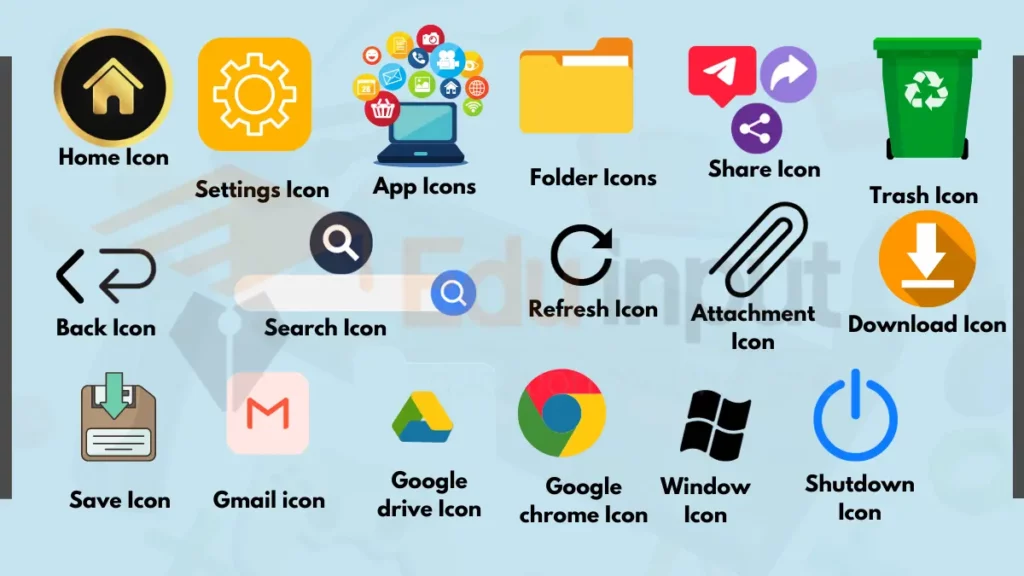
1. Home Icon
The home icon looks like a little house. Tapping the home icon takes you back to the main home screen. On the home screen, you can access all your apps, widgets, and files. When you get lost in a submenus, the home icon helps you navigate back to the beginning.
2. Settings Icon
The settings icon is shaped like a gear. Tapping the settings icon leads to the control panel. In the settings menu, you can change preferences. You can change display brightness, notification sounds, WiFi networks, and battery usage. The settings icon is the gateway to customizing your device experience.
3. App Icons
App icons are colorful squares. Each app icon represents a software application. Tapping an app icon opens the app so you can use it. The imagery helps identify the app at a glance. For example, the camera icon is for the camera app. Opening apps with icons is faster than browsing menus.
4. Folder Icons
Folder icons look like little folders. Folder icons represent groups of apps or files stored together. Tapping a folder icon pops open a window. The window shows the folder’s contents. Folders organize apps to reduce clutter on the home screen. Folder names summarize the contents, like “Social Media.”
5. Trash Icon
The trash icon looks like a wastebasket. It deletes files when you drag and drop them on it. The trash icon provides a visual cue to get rid of unneeded items. These include documents, photos, downloads, and other data. The trash temporarily stores deleted items before permanent removal.
6. Share Icon
The share icon looks like a box with an arrow coming out. Tapping the share icon displays options for sharing files. You can share via messaging apps, social media, email, and more. It allows swift distribution of content. You can share content with friends, family, or the public.
7. Back Icon
The back icon is shaped like an arrow pointing to the left. Tapping the back icon returns you to the previous screen. It allows you to retrace your steps if you change your mind or get stuck. The back icon is essential for navigating through menus and submenus.
8. Forward Icon
The forward icon looks like an arrow pointing to the right. It is the opposite of the back icon. Tapping the forward icon takes you to the next screen or page. Use it to move forward again after hitting the back icon.
9. Refresh Icon
The refresh icon resembles a circular arrow. Tap the refresh icon to reload the current screen or page. Refreshing updates content to show new data or changes. It is handy when pages fail to load fully or seem outdated.
10. Search Icon
The search icon is shaped like a magnifying glass. Tapping the search icon lets you find apps, files, settings, and information. In the search bar, you can type keywords to look for specific items. Search helps you locate content quickly on large devices.
11. Attachment Icon
The attachment icon looks like a paper clip. It is used when composing emails or messages. Tapping the attachment icon allows you to select files to include. Attachments let you send documents, photos, videos, and other data to recipients.
12. Download Icon
The download icon is a downwards pointing arrow. It signifies content being downloaded from the internet onto your device. Tapping downloads displays their status and speed. The icon turns into a box when downloads are completed successfully.
13. Upload Icon
The upload icon is an upward-pointing arrow. It represents files transferred from your device to online services. Uploads attach files or share content like social media posts. The upload icon changes when your transfer finishes.
14. Bookmark Icon
The bookmark icon is shaped like a ribbon or tag. It lets you save links to web pages and articles to revisit later. Tapped bookmarks are stored for quick access instead of typing URLs. The icon denotes valuable content worth saving.
Here’s a summarized table of various icons and their functions:
| Icon | Description | Function |
| Home Icon | Looks like a house. Takes you back to the main home screen from anywhere. | Navigation to main screen |
| Settings Icon | Shaped like a gear. Opens device settings for customization, including display, sound, network, and more. | Customizing device preferences |
| App Icons | Colorful squares representing software applications. Tapping opens the respective app quickly. | Accessing and launching apps |
| Folder Icons | Small folders indicating grouped apps or files. Opens to show contents, organizing items on the home screen. | Organizing apps and reducing clutter |
| Trash Icon | Wastebasket symbol. Deletes files when items are dragged and dropped onto it. | Temporary storage for deleted items |
| Share Icon | Box with an outgoing arrow. Displays options to share files via messaging, social media, email, and more. | Sharing content with others |
| Back Icon | Arrow pointing left. Returns to the previous screen or step in navigation. | Navigating backward through menus |
| Forward Icon | Arrow pointing right. Moves forward to the next screen or step after using the back icon. | Navigating forward after using the back icon |
| Refresh Icon | Circular arrow. Reloads the current screen or page to update content. | Updating and refreshing content on-screen |
| Search Icon | Magnifying glass. Opens a search bar to find apps, files, settings, and information quickly. | Searching for specific items or information |
| Attachment Icon | Paper clip symbol. Used in email or messaging to attach files like documents, photos, and videos. | Attaching files for sending |
| Download Icon | Downward arrow. Indicates downloading content from the internet to your device. | Monitoring and managing downloads |
| Upload Icon | Upward arrow. Represents uploading files or sharing content to online services or social media platforms. | Managing and tracking uploads |
| Bookmark Icon | Ribbon or tag shape. Saves web page links or articles for quick access later. | Bookmarking and saving valuable content |
How Do Icons Improve User Experience?
Icons make computers better by:
- Saving Time: Click an icon to open an app instead of searching menus.
- Clear Visuals: Icons like PDF or MP4 show file types instantly.
- Easy Navigation: Back or Home icons help you move through screens.
- Accessibility: Simple visuals help all users, from kids to seniors.
Example: The Search icon lets you find a file in seconds by typing a keyword.
Icons Across Operating Systems
Icons look different depending on your system:
- Windows: Recycle Bin, This PC, Edge browser (blue “e”).
- macOS: Trash, Finder, Safari (compass).
- Linux: File Manager, Terminal icons.
Example: Windows uses a wastebasket for Recycle Bin, while macOS calls it Trash with a similar icon.
5 Common Desktop Icons in Computer Systems
Computer icons name list includes familiar and commonly used icons. The five common icons of desktops are:
- This PC/My Computer: Opens your storage drives (e.g., C:).
- Recycle Bin: Stores deleted files temporarily.
- Network: Shows Wi-Fi or internet status.
- Documents: Opens your personal files folder.
- Browser Shortcut: Opens browsers like Chrome or Firefox.
Example: The Recycle Bin icon on your Windows desktop lets you recover deleted files easily.
Uses of Icons in Computer Systems
Icons of computer are indispensable for:
- Simplifying Navigation
They act as visual shortcuts to commonly used features or files. - Enhancing Accessibility
Icons like the search or help icon make finding resources more intuitive. - Providing Visual Clarity
Icons distinguish between various file types and applications, such as documents, images, and programs.
List of Computer Icons and Their Functions
Here is a list of computer icons and their functions:
- Folder Icon: Organizes and stores files and directories.
- Trash Icon: Temporarily saves deleted files.
- Settings Icon: Adjusts system or application configurations.
- Search Icon: Locates files or applications within a system.
- Network Icon: Displays connectivity status.
FAQs
What are the 5 types of icons in computer?
System, Application, File, Shortcut, and Navigation icons.
What are the 5 common icons of desktops?
My Computer/This PC
Recycle Bin
Network
Documents
Browser Shortcut
What is a unique icon?
Unique icons are custom-designed symbols for specific apps or brands. For example, WhatsApp’s green chat bubble is a unique icon, standing out from standard icons like Folder or Search. Companies create them to make their apps recognizable.
What is the oldest icon?
The Trash icon, introduced in 1983 by Apple’s Lisa.





Leave a Reply